Overview of the integration process for the screen-based eye tracker in Sennslab
How to integrate a screen-based eye tracker to conduct a research study
The first part objective of this post is to provide an overview of the integration process for the screen-based eye tracker in Sennslab.
Screen-based eye trackers from the Tobii portfolio that are currently supported by Sennslab are:
This article also reports on the screen-based eye trackers discontinued by Tobii.
How to integrate screen-based Tobii eye-tracker in Sennslab?
Warning: this process should be performed whenever SennsLab is installed on a new workstation, or the stimulation screen is modified.
Bitbrain recommends a dual-monitor setup to conduct stationary eye-tracker studies, connecting the researcher computer to a participant screen. Both displays should be extended: the participant screen presents the stimuli, while the researcher screen provides real-time monitoring. You can find more information about this in the following post: Lab Room and Equipment Setup Guide.
Data is recorded through the participant screen; the setup is divided into two displays: Screen 1 (researcher) and Screen 2 (participant). You can find the recommended screen positioning in Annex 4.6 of the Sennslab manual.
The following steps describe the integration process carried out through the software on the researcher’s screen (Screen 1). The placement and calibration of the eye-tracker must always be performed on the participant’s screen (Screen 2), where all stimuli will be displayed.
Step 1 - Download Tobii Pro Eye-Tracker Manager
To initiate the process, the user should download the Tobii Pro Eye Tracker Manager, an application that facilitates the detection and calibration of the eye tracker on the connected computer. This step must be completed prior to launching Sennslab.
Step 2 – Connect the Tobii Eye Tracker
The eye tracker should be connected to the computer via USB on the main computer to enable detection. The use of a USB extension cable is recommended.
Step 3 – Tobii eye-tracker placement
Once connected, the eye tracker should be positioned at the bottom center of the front participant screen, where the stimuli will be presented. The device must never obstruct the visible display area. For further information on mounting the stationary eye tracker, please refer to the section Mounting the Eye Tracker on the Screen.
It is recommended to exercise caution when placing the mount: it should be straight. The adhesive is strong and difficult to reposition if misaligned.
Step 4 – Tobii eye-tracker configuration
After correct placement, open the Tobii Pro Eye Tracker Manager application and follow the steps in
Configuring the Eye Tracker with the Display.
Step 5 – Design a Sennslab study with screen-based eye-tracker
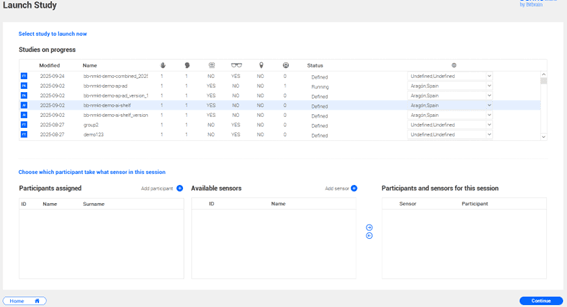
Once the computer calibration has been completed within the Tobii application, Sennslab can be launched to integrate the device into the platform. To connect a stationary eye tracker to Sennslab, a study in which its use has been defined must be selected.
Example on the next screen:
Step 6 – Participant assignation
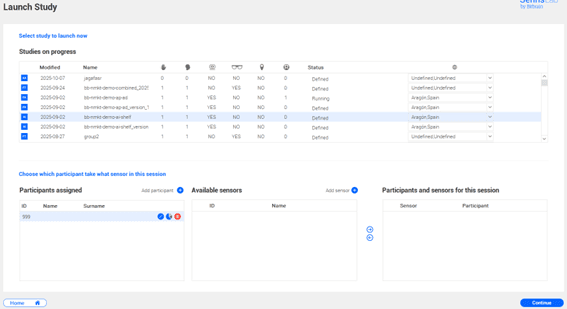
To include and record with the technology, a participant must be assigned:
Step 7 – Eye-tracker integration in Sennslab
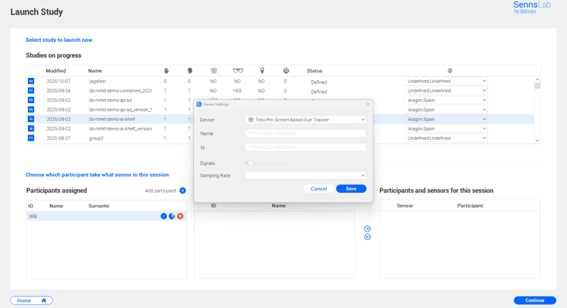
After assigning the participant, sensors can be added by clicking on ‘Add Sensor’ in the Available Sensors panel and selecting those required for the study.
For the stationary eye tracker, select ‘Tobii Pro Screen-Based Eye Tracker’. As the device was previously calibrated using Tobii Pro Eye Tracker Manager, it will be automatically detected and added.
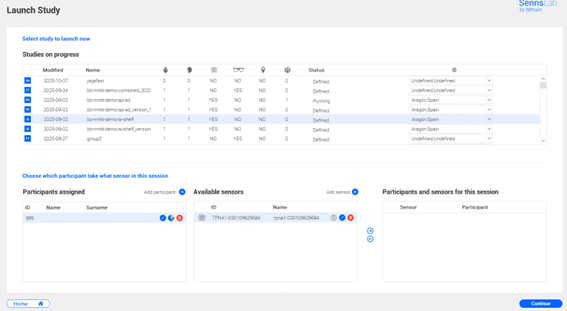
Step 8 - Device and Participant Selection for the recording session
To record with the added devices, select the corresponding participant and the sensors to be used, then move them to ‘Participants and Sensors for This Session’.
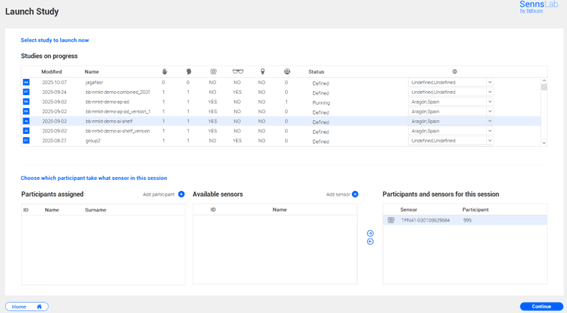
Clicking the Continue button will take you to the placement and calibration window.
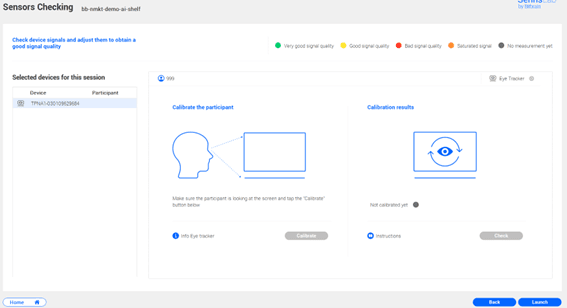
Step 9 – Eye-tracker calibration
Once on this screen, select the Calibrate button. A bar indicating the distance to the eye tracker will appear; it must be positioned within the green zone before clicking Start.
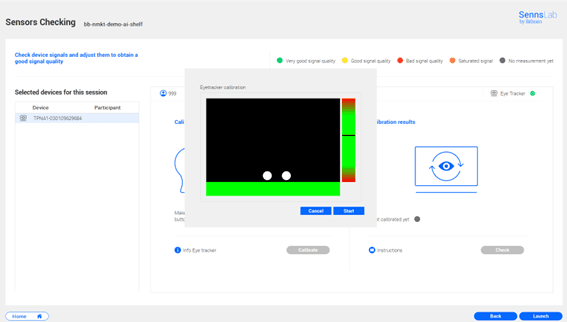
Click Start. A white dot will appear and move across the screen. The participant should be instructed to follow the dot with their eyes without moving their head.

To check if the calibration was successful, look at the Calibration indicator and confirm that the signal is good.
- If it is green, you can proceed.
- If it is yellow, you can perform a calibration check by verifying that the participant’s gaze matches the white points when they look at them.
- If it is red, please repeat the calibration.
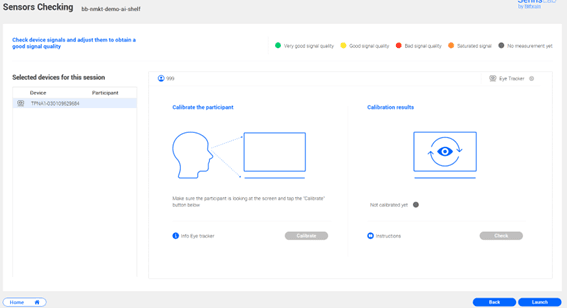
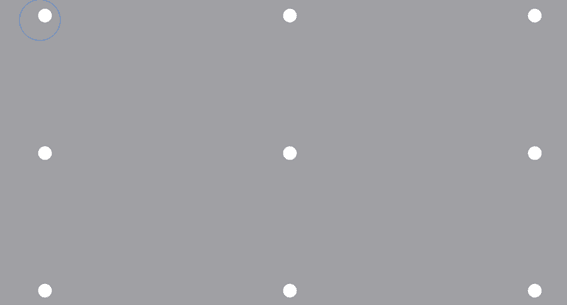
If the calibration indicator is green and the gaze aligns correctly with the different points, you can start the study using the eye tracker.
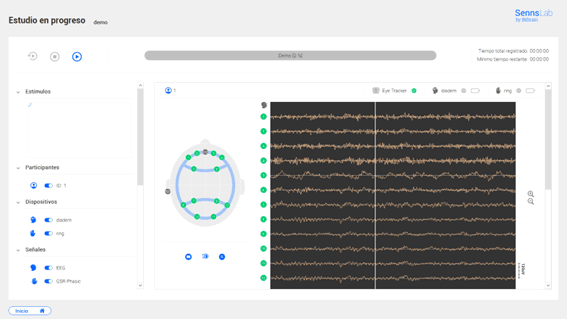
Once the technology is properly calibrated, you can launch the study and begin recording data.
What happens if I need to install devices such as the Tobii Nano- or Tobii X2-30?
When a Tobii product is discontinued, it means that it is no longer being produced or sold because a newer model is available. While driver updates are no longer provided, your existing device will continue to work with Sennslab. Please note that discontinued products are no longer eligible for technical support or after-sales service.
Discontinued Tobii Screen-Based Eye-Trackers:
How to Use Discontinued Eye Trackers in Sennslab
Eye trackers must be configured using Tobii Eye Tracker Manager before they can be detected by Sennslab.
Since these devices have been discontinued by Tobii, you will need to install an older version of the software, you can access Tobii Connect to download the corresponding version.
Then, follow the instructions in Configuring the Eye Tracker with the Display to complete the setup.
Once the device is calibrated in the Tobii software, Sennslab will automatically detect it, and you can start working as usual.